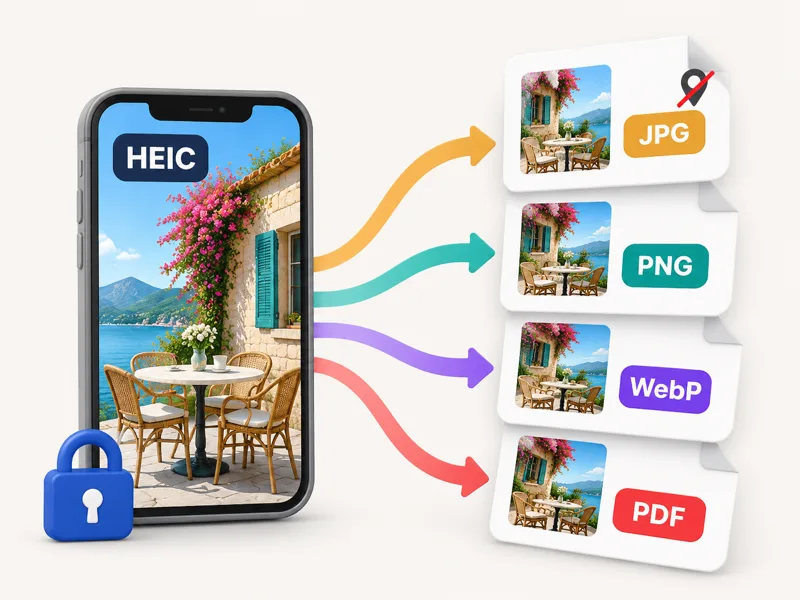

How to convert HEIC files
- Press Choose HEIC photos and select your .heic or .heif files — or drop them on the box. On iPhone, Choose File opens your photo library. A sample photo with location data is there to try first.
- Pick the output: JPG to share or upload, PNG to edit without more compression, WebP for a website, or PDF to put all photos in one document.
- Choose the metadata option (JPG and PNG): Keep, remove location is the safe default. Set quality and a maximum size if you need smaller files.
- Download each converted file, or press Download all for a ZIP — for PDF you get one file with a page per photo.
What a HEIC file is and which format to convert it to
HEIC (High Efficiency Image Container) is the format iPhones have used for photos since iOS 11. It stores the picture with HEVC compression, so a photo takes about half the space of a JPG at the same visible quality, and it can hold depth data, Live Photo links and full EXIF metadata. The catch is support: Windows needs an extra codec, most websites and forms refuse .heic uploads, and many apps can't open it. Converting fixes that. Choose JPG when you want the photo to open everywhere — email, forms, printing, Windows. Choose PNG if you'll edit the photo and don't want a second round of lossy compression. Choose WebP when the photo is going on a website and file size matters. Choose PDF when someone asked for a document, such as receipts or ID photos. HEIF files from Samsung and other cameras work the same way. Converting never adds detail; it only changes the container.
HEIC vs JPG vs PNG vs WebP vs PDF
| Format | Best for | Compression | Transparency | Keeps EXIF here | Opens on |
|---|---|---|---|---|---|
| HEIC (your original) | Storing photos on iPhone | HEVC, very efficient | Possible | — | Apple devices; Windows with an add-on |
| JPG | Sharing, uploads, printing | Lossy, adjustable quality | No | Yes — all, or without GPS | Every device and app |
| PNG | Editing, screenshots, graphics | Lossless, larger files | Yes | Yes — all, or without GPS | Every device and app |
| WebP | Websites and web apps | Lossy, smaller than JPG | Yes | No (removed) | All current browsers; most apps |
| Documents, forms, receipts | Photo pages as JPEG | No | No (removed) | Every device |
Expect a JPG at quality 90 to be roughly 1.5–2.5× the size of the HEIC, and a PNG several times larger — that's normal, not a sign of higher quality. Use the Size option (max 2048 or 1080 px) when a form has an upload limit.
Facts at a glance
| Question | Answer |
|---|---|
| Price | Free — no credits, no watermark |
| Sign-up | Not needed |
| Upload | None — photos are decoded and converted by your browser |
| Input | HEIC and HEIF from iPhone, iPad, Samsung and cameras; also JPG, PNG, WebP, AVIF in the same batch |
| Output | JPG, PNG, WebP, PDF (one PDF with a page per photo, or one per photo) |
| Batch | No fixed file count or size cap; Download all as ZIP |
| Metadata | JPG and PNG: keep EXIF without GPS (default), keep all, or remove all; WebP and PDF never carry it |
| Location check | Each photo with GPS shows its coordinates before you download |
| Quality / size | Quality 50–100; original size or max 4096, 2048 or 1080 px |
| Rotation | Applied to the pixels, so photos are never sideways |
Keep the date, drop the location
An iPhone photo's EXIF block records when it was taken, the phone model, lens and exposure — and, unless you turned it off, the exact GPS position. Most converters either throw all of it away (so your photo app can no longer sort by date) or upload the photo to a server with everything in it. This page reads the EXIF from the HEIC itself and lets you decide:
- Keep, remove location — the date taken, camera and settings go into the JPG or PNG; the GPS block is emptied. Best for sharing and for photo libraries.
- Keep all EXIF — an exact copy, location included. Use it for your own backups.
- Remove all — no metadata at all, like a screenshot. Use it for anonymous uploads.
In every case the orientation tag is reset, because the pixels are already turned upright — so a converted photo can't appear rotated twice. Only need one format? HEIC to JPG and HEIC to PNG are single-purpose versions of this page; HEIF to JPG covers Samsung and camera files.
HEIC converters compared
| Feature | This page | HEIC.AI | FreeConvert | CloudConvert |
|---|---|---|---|---|
| Where photos are processed | In your browser — never uploaded | In your browser (stated) | Uploaded to a server | Uploaded to a server |
| Output formats | JPG, PNG, WebP, PDF | JPG, PNG, WebP, PDF | Chosen after upload | 13 formats, incl. JPG, PNG, WebP, PDF |
| Limits shown | No fixed file count or size cap | 200 files, 50 MB each | 1 GB per file, more with sign-up | Not shown before upload |
| Keep EXIF (date, camera) | Yes — with or without GPS | No — EXIF is removed | Not shown on the page | Not shown on the page |
| Shows which photos contain GPS | Yes, per photo | Not shown on the page | Not shown on the page | Not shown on the page |
| All photos into one PDF | Yes | Not shown on the page | Not shown on the page | Not shown on the page |
| Batch ZIP | Yes | Yes | Yes | Yes |
| Sign-up | Not needed | Not needed | Optional, for larger files | Optional |
Competitor details are as shown on their own pages on 6 November 2026; options that only appear after uploading aren't counted. Tools change, so check before you rely on a feature.
Frequently asked questions
What is the best free HEIC converter?
One that converts on your device, handles a whole batch and lets you choose the format. This page does all three: HEIC to JPG, PNG, WebP or PDF, any number of photos, no upload, no sign-up and no watermark.
How do I convert HEIC to JPG on Windows?
Open this page in Chrome or Edge, drop the .heic files on the box, keep JPG selected and press Download all. You don't need to install the HEIF codec from the Microsoft Store.
Are my photos uploaded?
No. The page's code runs in your browser and converts the photos there; you can check the Network tab in developer tools — no image data is sent.
Does converting HEIC to JPG lose quality?
Very little at quality 90 or higher — differences aren't visible at normal size. JPG files are larger than HEIC because JPEG compresses less efficiently, not because they hold more detail. For no further loss at all, choose PNG.
Will the converted photo keep the date it was taken?
Yes for JPG and PNG with Keep, remove location (the default) or Keep all EXIF. Your photo app will still sort it by the original date. WebP and PDF files don't carry the EXIF.
How do I remove the location from iPhone photos?
Convert them here with Keep, remove location or Remove all. The GPS coordinates shown next to each photo won't be in the downloaded files.
Can I convert many HEIC files at once?
Yes. Select or drop as many as you like; they convert one after another and Download all saves them in one ZIP, or one PDF if you chose PDF.
Does it work on iPhone and Android?
Yes. On iPhone, Choose HEIC photos opens your photo library or the Files app. On Android it opens HEIC and HEIF files from Samsung and other phones.
What is the difference between HEIC and HEIF?
HEIF is the container standard; HEIC is HEIF with HEVC-compressed images, which is what iPhones save. Both open here, as do .hif files from some cameras.
Can I make iPhone photos JPG in the first place?
Yes: Settings → Camera → Formats → Most Compatible makes the camera save JPG. Settings → Photos → Transfer to Mac or PC → Automatic converts when you copy photos by cable.
Updated · By the imagetojpg.app team