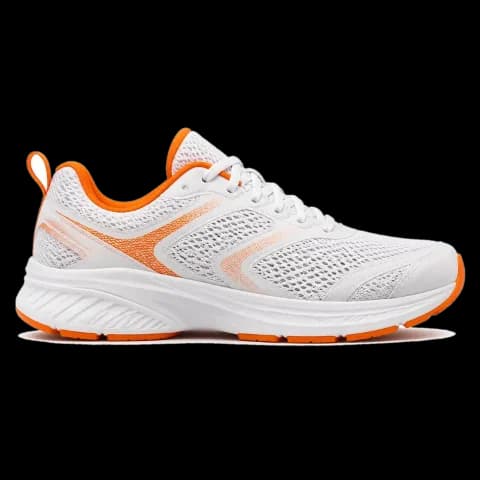
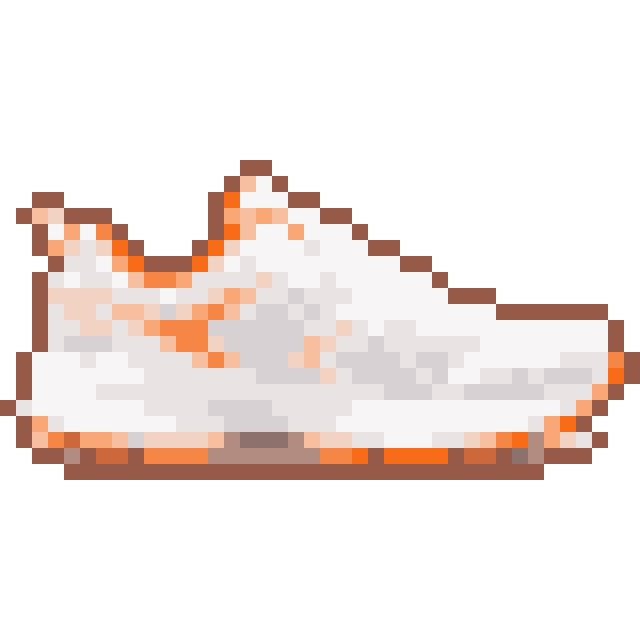
How to turn a picture into pixel art
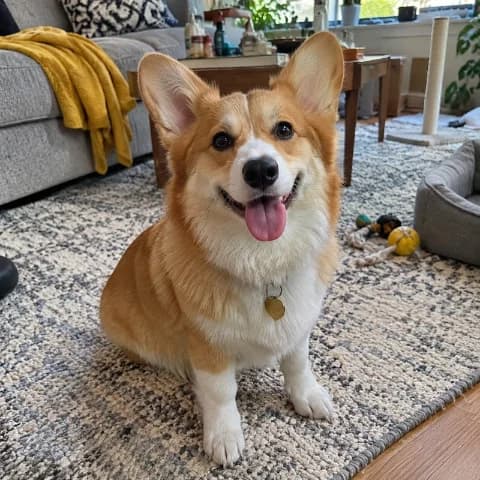
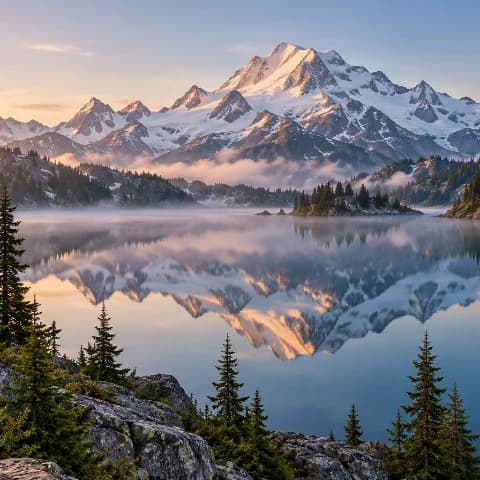
- Choose, drop or paste an image — JPG, PNG, WebP or iPhone HEIC. A sample loads first so you can try the controls.
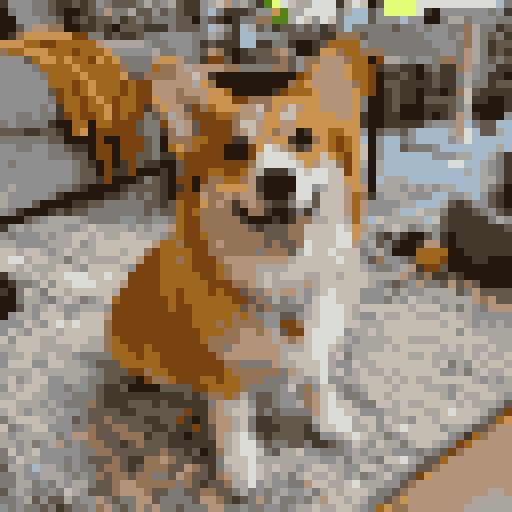
- Set the pixel size: fewer pixels across (32–48) gives chunky 8-bit art, more (96–128) keeps faces and detail.
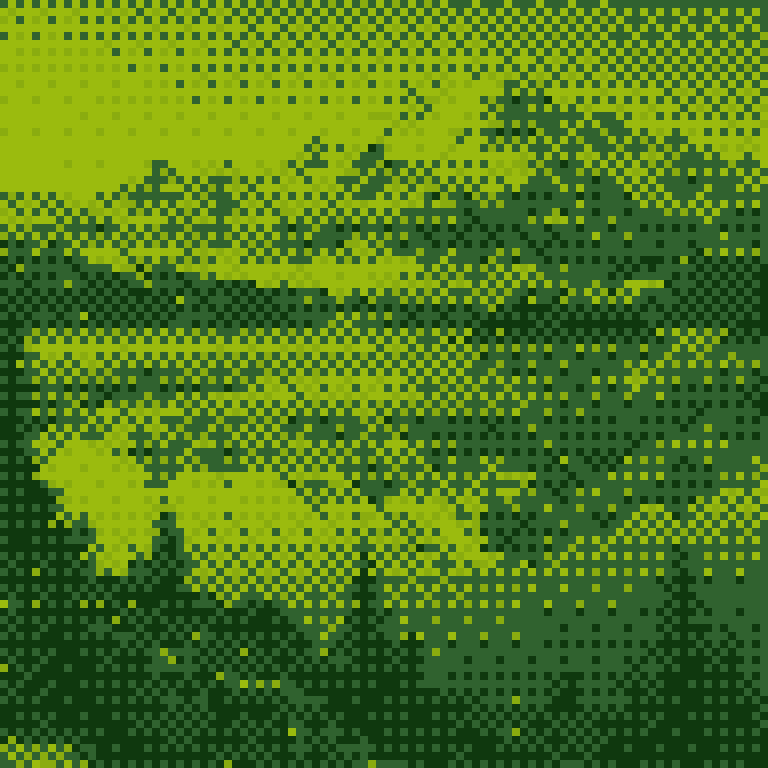
- Pick a palette: Auto finds the best colours in your picture (choose how many), or lock it to Game Boy, PICO-8 or another retro palette. Add dithering for smooth shading with few colours.
- Fine-tune brightness, contrast and saturation, turn on Outline for cut-out sprites, then Download PNG (choose the size) or SVG.
How converting an image to pixel art works
Pixel art is a small grid of solid squares, each one a single colour from a short palette. To get there from a photo, this converter first shrinks the picture to the width you choose — say 64 pixels across — by averaging every original pixel that falls inside each square, so colours stay true instead of jagged (transparent areas are left out of the average). Brightness, contrast and saturation are then pushed a little, because small images look flat. Next each square is snapped to the nearest colour in the palette: either the most common colours of your own picture, found with k-means clustering, or a fixed retro set such as the 4 greens of the Game Boy or the 16 colours of PICO-8. Dithering spreads the rounding error to neighbouring squares, so gradients become checker patterns instead of bands. Finally the grid is scaled back up with nearest-neighbour, so every pixel stays a hard-edged square. Nothing is uploaded.
Facts at a glance
| Question | Answer |
|---|---|
| Price | Free — no credits, no watermark |
| Sign-up | Not needed |
| Upload | None — the picture is processed in your browser |
| Input | JPG, PNG (transparency kept), WebP, GIF, HEIC; drop, paste or choose |
| Pixel size | 16 to 256 pixels across; height follows the picture's shape |
| Colours | Auto 2–64 from your picture, original colours, 7 retro palettes (Game Boy, PICO-8, Sweetie 16, Commodore 64, CGA, 4 grays, 1-bit), or paste your own hex codes / a Lospec palette |
| Dithering | None, ordered (Bayer 4×4) or Floyd–Steinberg |
| Extras | Brightness, contrast, saturation; sprite outline; grid lines; tap-to-copy palette hex codes |
| Download | PNG at 1 px per pixel (sprite), original size, 8× or 16×; SVG (vector, sharp at any size) |
Which settings to use
| You want | Pixel width | Palette | Dithering |
|---|---|---|---|
| Retro 8-bit game look | 32–48 | PICO-8 or Sweetie 16 | None |
| Game Boy style | 48–64 | Game Boy | Ordered |
| Pixel portrait / avatar that still looks like you | 64–96 | Auto, 12–24 colours | None |
| Sprite for a game (Unity, Godot, RPG Maker) | 16–32 | Auto, 8–16 colours | None, with Outline on a transparent PNG |
| Cross-stitch, Perler or fuse-bead pattern | 29–58 (one bead per pixel) | Auto, 8–16 colours | None |
| Smooth sky or skin with few colours | Any | Auto, 4–8 colours | Floyd–Steinberg |
| Minecraft pixel art or map art | 64 or 128 | Auto, 16–32 colours | None |
Download at “1 pixel per pixel” when the art goes into a game engine or editor (Aseprite, Piskel, Photoshop). Download at “8× bigger” or SVG for social media, printing or a wallpaper, so it isn't blurred when the app resizes it.
Image to pixel art converters compared
| Feature | This page | Pixel Art Village | MakeBead | Pixel It |
|---|---|---|---|---|
| Pixel size | 16–256 pixels across | Pixel size 1–100 | 10–256 wide | Block size 1–50 |
| Palettes | Auto 2–64, original, 7 named retro palettes, paste hex / Lospec | From image 1–64, 5 built-in, Lospec import | 5–128 colours, Lospec, paste codes | 12 unnamed presets, palette file upload |
| Game Boy palette | Yes | No | Not stated | Not stated |
| Dithering | Ordered + Floyd–Steinberg | None | 5 algorithms | None |
| Brightness / contrast / saturation | Yes | Yes | Yes | Greyscale only |
| Sprite outline | Yes | No | Not stated | No |
| Grid | Yes | Yes | Yes, with symbols | No |
| Download | PNG at 1×, original, 8×, 16×; SVG | Small or Large | PNG (transparent), PDF | PNG, Download All |
| Image processed | In your browser — not uploaded | Not stated | In your browser | Not stated |
Competitor details are as shown on their own pages on 4 November 2026; tools change, so check before you rely on a feature.
Good to know
- This is automatic conversion, not hand-drawn pixel art: it gives you a strong base, but artists usually clean up single stray pixels and outlines by hand afterwards.
- Busy photos turn into noise at small sizes. Crop to the subject first, or use a larger pixel width.
- Faces need about 48+ pixels across to stay recognisable.
- The art you make from your own pictures is yours to use, including commercially.
Frequently asked questions
How do I turn a picture into pixel art for free?
Choose the picture on this page, set how many pixels across you want and a palette, then press Download PNG. It's free, needs no account and adds no watermark.
Does it upload my photo?
No. The converter runs in your browser, so the picture never leaves your device.
What is the best pixel size?
32–48 pixels across looks like classic 8-bit games, 64 is a good all-rounder, and 96–128 keeps faces and small detail. Try the chips under the slider and compare.
Can I use the Game Boy or PICO-8 palette?
Yes. Choose Game Boy, PICO-8, Sweetie 16, Commodore 64, CGA, 4 grays or 1-bit in the Palette menu, or pick Auto to use the best colours from your own image.
What does dithering do?
It mixes two palette colours in a checker pattern to fake an in-between shade, so gradients look smooth instead of banded. Use it with few colours; switch it off for clean, flat game-style art.
How do I get a sprite with a transparent background?
Start from a PNG with a transparent background (or remove the background first), keep the width small (16–32), turn on Outline and download at “1 pixel per pixel”.
Why does my pixel art look blurry after I post it?
Apps blur small images when they enlarge them. Download at 8× or 16× bigger, or as SVG, so every pixel stays a sharp square.
Can I use it for Perler beads or cross-stitch?
Yes. Set the width to the number of beads or stitches across, keep 8–16 colours, turn on Show grid and download at 16× bigger to count from.
Can I use a Lospec palette or my own colours?
Yes. Choose Custom in the Palette menu and paste hex codes — a Lospec palette's hex list, a .hex file's contents, or codes like #1a1c2c #5d275d. Every pixel is snapped to those colours.
Can I use the pixel art commercially?
Yes. Art made from your own pictures is yours; we add no licence terms and no watermark.
Does it work on iPhone and Android?
Yes, in Safari or Chrome. iPhone HEIC photos open directly, and you can save the PNG to Photos.
Updated · By the imagetojpg.app team