How to convert a picture to an editable Word document
- Tap Choose pictures, drop images on the box, or paste a screenshot with Ctrl/⌘+V. JPG, PNG, WebP, GIF and BMP all work; add several at once for a multi-page document.
- Pick the Language of the text. The first time, the reading model for that language downloads once (a few MB) and is then cached; after that it works offline.
- Read the text in the box next to each picture and correct anything that came out wrong — the confidence score shows how sure the OCR was.
- Name the file and press Download Word (.docx), or save a .txt, or Copy text to paste anywhere.
How the picture becomes Word text
Word can't edit the words inside a picture, so they have to be recognised first — optical character recognition, or OCR. This page runs Tesseract, the open-source OCR engine first built at HP and later developed by Google, compiled to WebAssembly so it runs inside your browser. Small screenshots are enlarged before reading, because Tesseract is most accurate when letters are about 20 to 40 pixels tall. The text keeps its line breaks, and blank lines between blocks become separate paragraphs, so a letter or a receipt keeps its shape. The .docx is a real Word file, not a picture pasted into one: every word is editable, and it opens in Microsoft Word, Google Docs, Pages and LibreOffice. Clear printed text in a sharp photo is usually read almost perfectly; handwriting, curved pages, tiny or decorative fonts and glare lower the accuracy, which is why the text is shown for you to check before you download.
Getting the best result
| Picture | What to expect | Tip |
|---|---|---|
| Screenshot of a web page, app or PDF | Near-perfect | Paste it straight in with Ctrl/⌘+V |
| Scanned document or printed letter | Near-perfect | Scan at 300 dpi if you can choose |
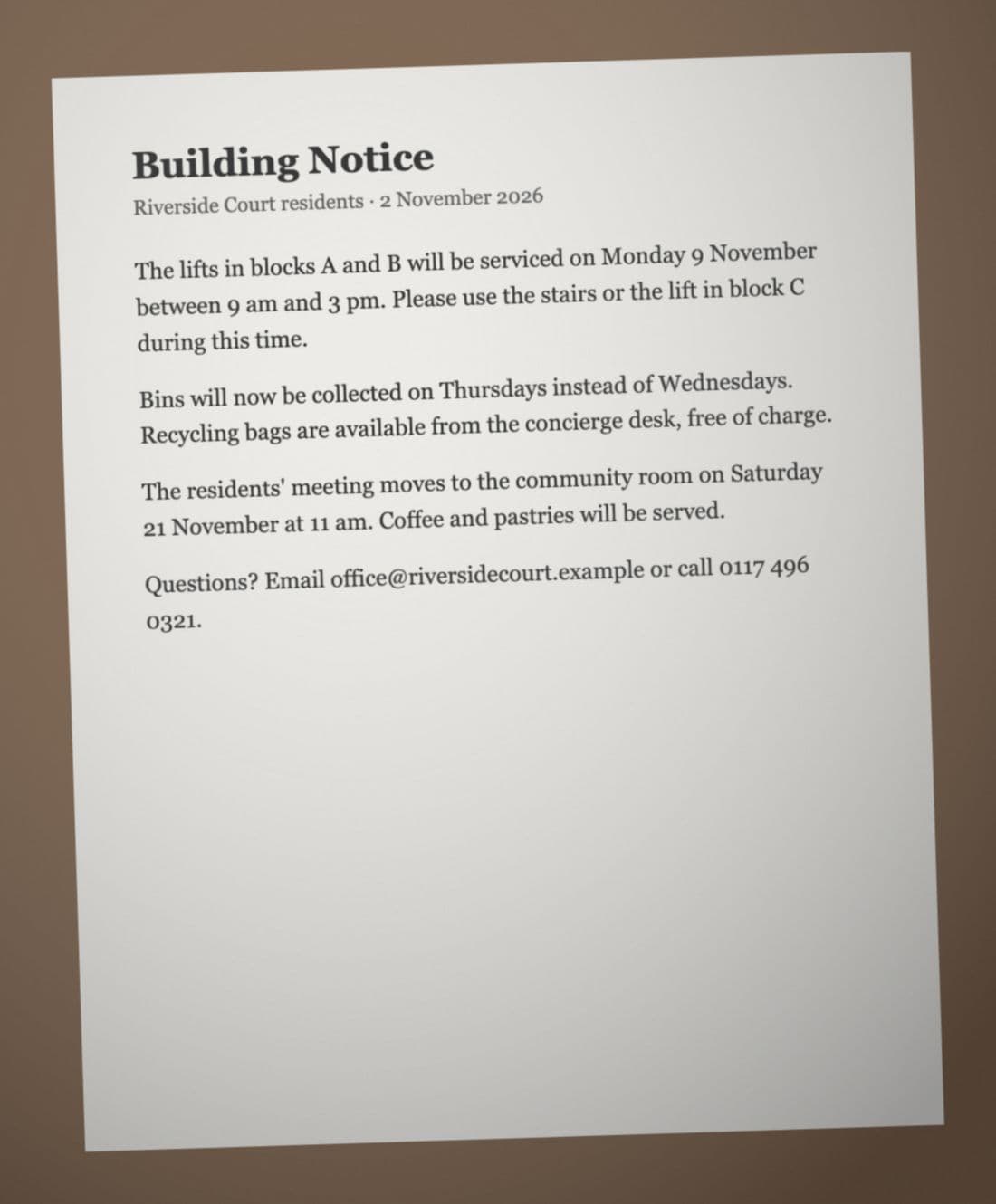
| Phone photo of a page | Very good when sharp and flat | Hold the phone parallel to the page, avoid shadows and glare |
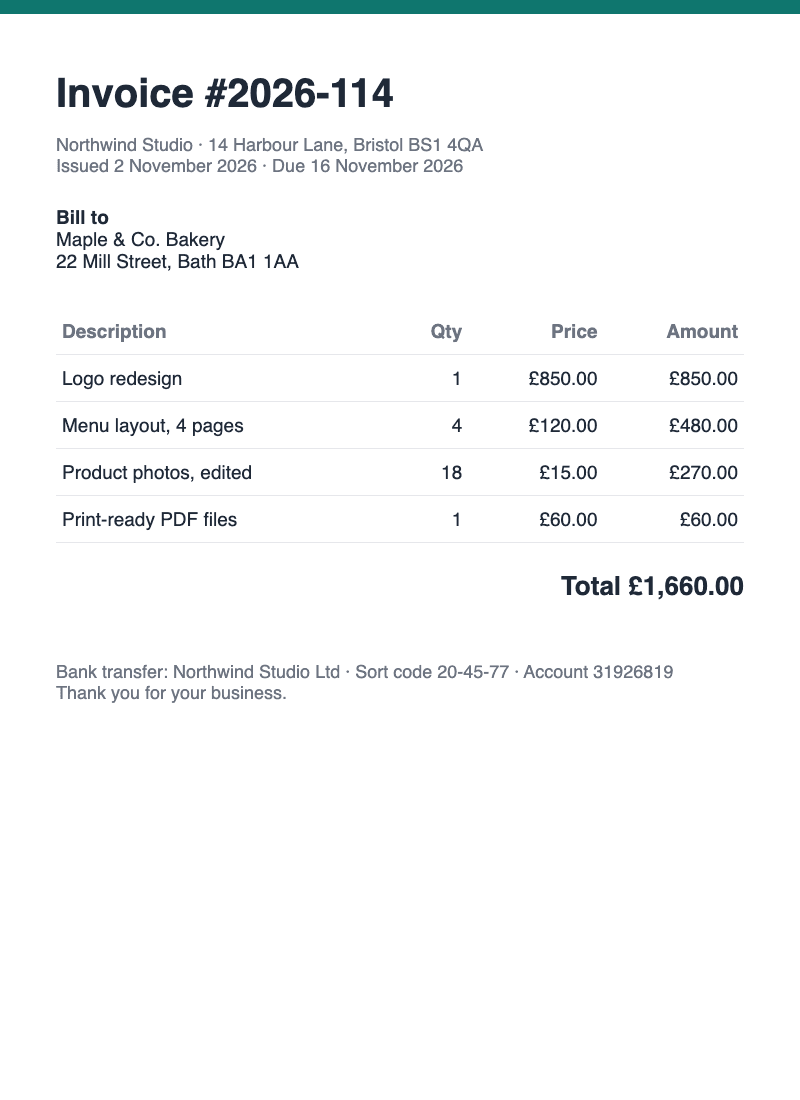
| Receipts and invoices | Good; check numbers | Fill the frame with the receipt |
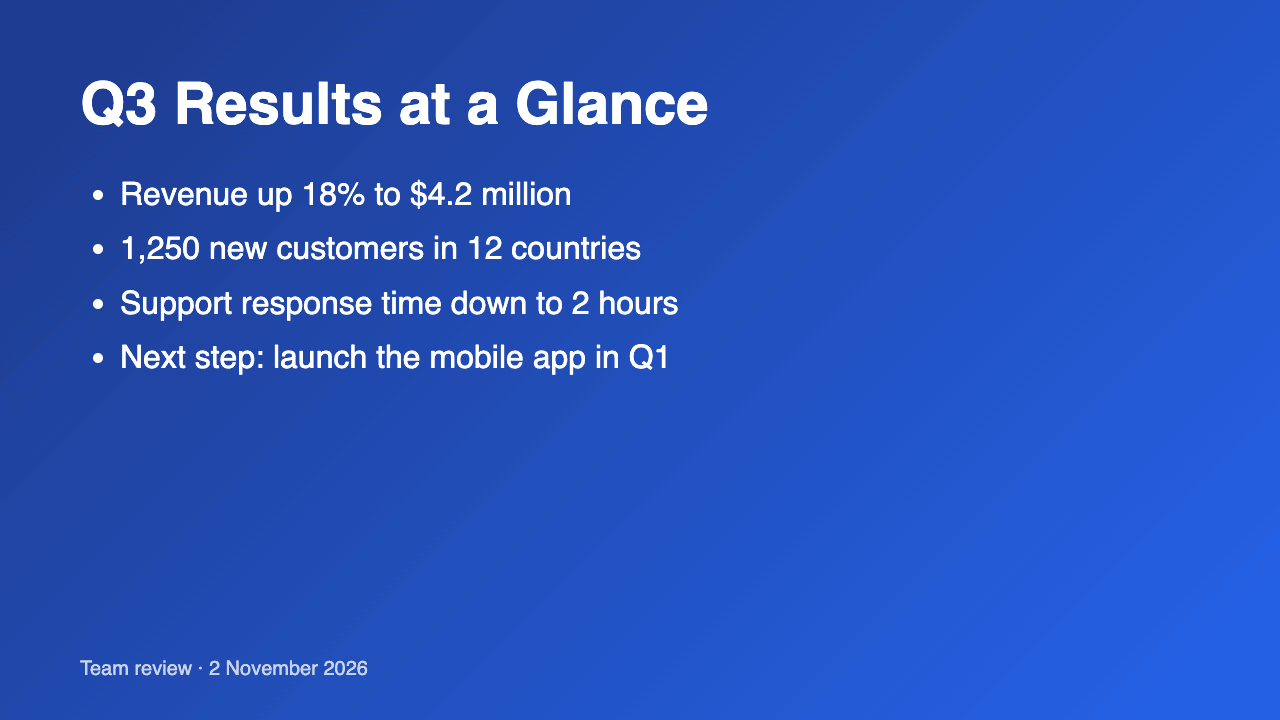
| Slides and posters with coloured backgrounds | Good | Crop to the text area |
| Handwriting | Poor | Type it instead — OCR is made for printed text |
Pick the language the text is written in: it tells Tesseract which letters and words to expect. Chinese, Japanese, Korean, Arabic, Hindi, Russian and Ukrainian also load English, so names, codes and prices in Latin letters come out right.
This page vs typical online picture to Word converters
| Feature | This page | Typical online converters |
|---|---|---|
| Where the text is read | In your browser — pictures never leave your device | Pictures are uploaded to a server |
| Check and fix the text before saving | Yes, editable box per picture | Usually download first, fix in Word later |
| Several pictures in one document | Yes, one page per picture | Often one file at a time or a paid feature |
| Output | .docx, .txt or copy | .docx, sometimes with the image pasted in |
| Languages | 19, including Chinese, Japanese, Arabic and Hindi | Varies |
| Confidence score | Shown for each picture | Rare |
| Sign-up, daily limits, ads | None | Common on free plans |
Frequently asked questions
How do I convert a picture to a Word document?
Add the picture on this page, choose the language, check the text that appears, and press Download Word (.docx). The text in the file is fully editable.
Is it free, and is there a limit?
Yes, it's free with no sign-up, no watermark and no daily limit. Add as many pictures as you like.
Are my pictures uploaded?
No. The OCR engine runs inside your browser, so the pictures and the text never leave your device. Only the reading model for your language is downloaded, once, and then cached.
How accurate is it?
On clear printed text — screenshots, scans, sharp photos — it's usually almost word-perfect. Blurry photos, shadows, unusual fonts and handwriting lower the accuracy, so the text is shown for you to check and fix before you download.
Can I convert a JPG or PNG to Word?
Yes. JPG, PNG, WebP, GIF, BMP and iPhone HEIC photos all work, including screenshots pasted with Ctrl/⌘+V.
Does it keep the layout, tables and images?
It keeps line breaks and paragraphs, so letters, notices and receipts keep their shape. Tables become lines of text, and the picture itself isn't added to the document — you get clean, editable text.
Which languages can it read?
English, Spanish, French, German, Portuguese, Italian, Dutch, Polish, Turkish, Vietnamese, Indonesian, Russian, Ukrainian, Arabic, Hindi, Chinese (Simplified and Traditional), Japanese and Korean.
Does it work on iPhone and Android?
Yes. Choose a photo or take one, and the .docx saves to Files or Downloads; it opens in Word, Google Docs or Pages. Reading takes a few seconds per picture on a recent phone.
Updated · By the imagetojpg.app team