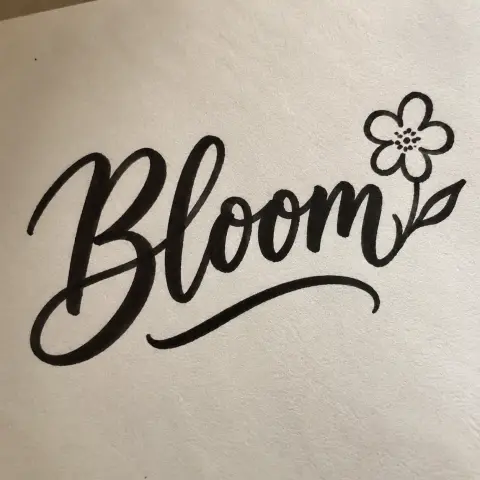
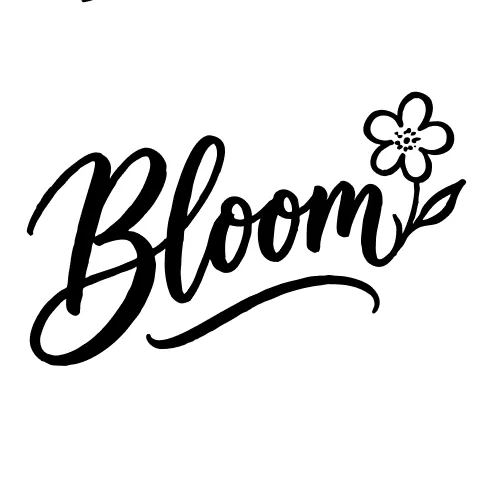
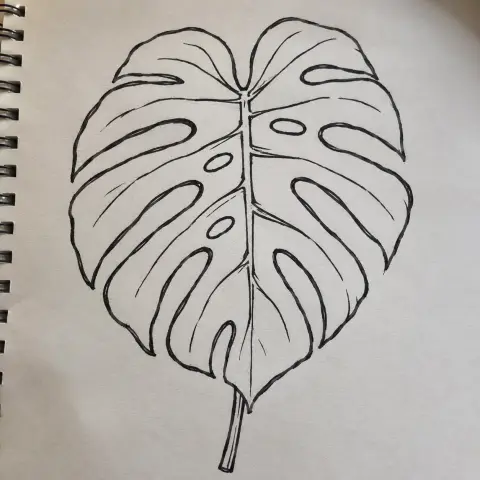
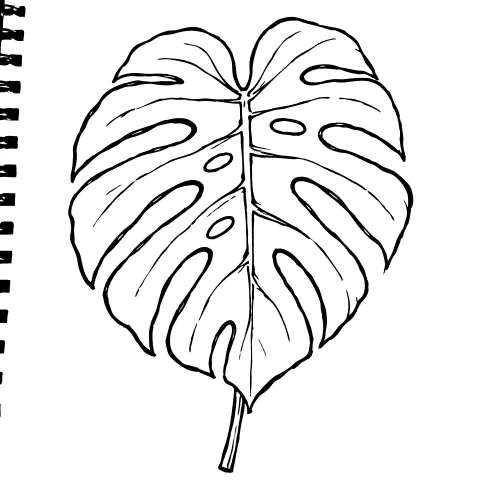
How to convert an image to SVG for Cricut
- Open your image: drop it on the tool, tap Choose image, or paste with Ctrl/Cmd+V. PNG, JPG, WebP and iPhone HEIC work. A high-contrast picture (black design on white) gives the cleanest cut lines.
- Pick Black & white for a one-colour cut, or Colour layers and set how many colours (2–8). Remove background drops the paper colour so only the design is cut.
- Fine-tune: move Threshold until thin lines are solid, raise Smoothing for rounder curves, raise Remove specks to drop dust and JPEG noise. The preview updates as you go.
- Download SVG (or DXF for Silhouette Studio Basic). In Cricut Design Space: Upload → Upload image → choose the .svg → Upload. It appears as a cut image, one layer per colour.
How image-to-SVG tracing works (and why it matters for cutting machines)
A PNG or JPG is a grid of coloured pixels; a cutting machine needs outlines it can follow with a blade. Some converters just wrap the pixels inside an .svg file — Design Space then treats it as a print image, not a cut. This tool traces instead. It turns your picture into a black-and-white (or few-colour) mask, evens out uneven lighting from phone photos, drops specks smaller than the size you choose, then follows the edge of every shape pixel by pixel. That jagged edge is smoothed, sharp corners are detected and kept sharp, and the rest is fitted with cubic Bézier curves — the same kind of curves a designer draws by hand — so a circle becomes a few curve segments, not hundreds of tiny steps. Holes (the inside of an O, the gaps in a mandala) stay holes. Colour mode does the same for each colour and stacks the layers, so pieces nest when you layer vinyl. Everything happens on your device in JavaScript.
Facts at a glance
| Question | Answer |
|---|---|
| Price | Free and unlimited — no credits, no paid plan, no daily cap |
| Sign-up | Not needed |
| Watermark | None |
| Upload | None — tracing runs in your browser; your image never leaves your device |
| Input | PNG, JPG, WebP, GIF, BMP, iPhone HEIC; any size (worked at up to 1400 px on the long side) |
| Output | SVG (cubic Bézier paths, one path per colour), DXF (R12 polylines in mm), PNG preview |
| Modes | Black & white (auto or manual threshold, invert, even out lighting) or 2–8 colour layers |
| Cricut Design Space | Opens as a cut image; colour SVGs become one layer per colour |
| Silhouette Studio | Basic edition: use the DXF. Designer edition and up: SVG |
| Also works with | Glowforge, xTool and other laser software, Inkscape, Illustrator, Figma, Canva (SVG upload) |
Settings for common Cricut projects
| Project | Mode | Tips |
|---|---|---|
| Vinyl decal from a logo or clip art | Black & white | Auto threshold; Remove specks 12–30 so stray dots don't become tiny weeding pieces |
| Hand lettering / signature | Black & white | Even out lighting on for phone photos; lower Smoothing (0.8) to keep pen corners |
| Layered vinyl or HTV in 2–4 colours | Colour layers | Set the exact number of colours in the design; Remove background on |
| Mandala or detailed line art | Black & white | Smoothing 1.0–1.4; zoom the preview to check thin gaps stay open |
| Photo to stencil | Black & white | Move Threshold until faces read clearly; raise Remove specks to 60+ for fewer tiny islands |
| Text that came out white on black | Black & white | Tick Invert so the letters, not the box around them, are cut |
Best input: one dark design on a plain light background, at least 800 px wide. Blurry or low-resolution pictures trace with wobbly edges — run them through the Image Enhancer first.
Image to SVG converters compared
| Feature | This page | Typical free online converters |
|---|---|---|
| Real vector tracing (cuttable paths) | Yes — Bézier curves | Often yes; some only embed the pixels in an SVG |
| Your image uploaded | No — processed on your device | Yes, to their server |
| Download | Free, unlimited | Some charge or ask you to sign up before downloading |
| File size limit | None set (large images are traced at 1400 px) | Commonly 4–10 MB |
| Colour layers for layered vinyl | 2–8, stacked | Varies |
| DXF for Silhouette Studio Basic | Yes | Rare |
| Live preview while adjusting | Yes, before/after | Usually convert, then re-upload to change settings |
| Watermark | Never | Sometimes on free results |
Good to know
- Tracing simplifies: photos with soft shading become flat shapes (like a stencil or screen print). That's what a blade or laser needs, but it isn't a photo-realistic vector.
- Node count is shown under the preview. Fewer nodes cut faster and more smoothly; raise Smoothing and Remove specks to reduce them.
- The SVG is sized in pixels of the traced image. Resize it to your project size in Design Space — vectors stay sharp at any size.
- DXF is written in millimetres at 96 pixels per inch, with the Y axis flipped the way CAD programs expect.
Got an SVG or GIF from ChatGPT? How to fix and convert it
AI chats and image tools now hand out SVG code and animated GIFs directly. They usually need one more step before they work in a cutter, on a website or in chat apps — each one is a free, in-browser tool on this site:
| You have… | Problem | Use |
|---|---|---|
| SVG code in a ChatGPT / Claude / Gemini reply | Saved file shows as a broken image or won't open in Design Space (missing xmlns, code fence, , bare &) | Compress SVG — paste the whole reply; it repairs the code, lists the fixes and slims the file |
| An SVG you want to laser-cut or open in CAD | Needs DXF in real mm or inches, with layers | SVG to DXF — units, width, curve smoothness, a layer per colour |
| A PNG or JPG made by an AI image tool | Not a vector, so it can't be cut | Image to SVG (this page) — trace it, then cut or convert |
| An animated GIF that's too big | Over Discord, Slack or email limits | GIF Compressor — target size presets |
| A GIF the wrong size or speed | Needs to be an emoji, sticker or slower loop | GIF Resizer or GIF Speed Changer |
| A GIF for a website | Large and limited to 256 colours | GIF to WebP (smaller) or GIF to APNG (lossless, smooth transparency) |
Frequently asked questions
How do I convert a JPG or PNG to SVG for Cricut for free?
Open the image on this page, choose Black & white (or Colour layers), adjust the threshold until the preview looks right and press Download SVG. Then in Cricut Design Space choose Upload → Upload image and pick the .svg. It's free with no sign-up and no watermark.
Why does Cricut say my SVG is a print image or won't cut?
That happens when an SVG only contains embedded pixels. The SVG from this page contains traced vector paths, so Design Space treats it as a cut image.
Does it upload my image?
No. The tracing code runs in your browser and the picture never leaves your device, so it's safe for client logos and personal photos.
Can I make a multi-colour SVG for layered vinyl?
Yes. Choose Colour layers and set 2–8 colours. Each colour becomes one path; in Design Space they appear as separate layers you can cut from different vinyl.
Does it work with Silhouette Studio?
Yes. Silhouette Studio Basic can't open SVG, so download the DXF. Designer edition and up can open the SVG directly.
How do I get rid of tiny specks and dots in the cut file?
Raise Remove specks. It drops shapes smaller than the chosen size before tracing, so dust, paper texture and JPEG noise don't turn into tiny pieces to weed.
My design is white on a black background. What do I do?
Tick Invert. The tool then traces the white shapes instead of the black background.
Can I convert an SVG on my iPhone or Android?
Yes. Open this page in Safari or Chrome, choose a photo (HEIC works) and download the SVG to Files, then upload it in the Cricut Design Space app.
Is the result a true vector I can edit in Illustrator or Inkscape?
Yes. It's standard SVG with cubic Bézier paths, so you can edit nodes, recolour or combine it in Illustrator, Inkscape, Affinity or Figma.
Updated · By the imagetojpg.app team