

How to convert PNG images to EPUB
- Tap Choose PNG pages, drop the files on the box, or paste with Ctrl/⌘+V. JPG and GIF pages go in unchanged; WebP and AVIF are converted.
- Put the pages in reading order: drag the cards, use ← → on a phone, or press Sort A→Z for numbered files like page-01.png, page-02.png. The first page is the cover.
- Type the Title and Author, then choose Layout: Fixed for comics, manga, picture books and scans; Reflowable for photos in an ordinary e-book. Choose E-reader 1600 px to shrink very large pages.
- Press Create EPUB. The .epub downloads at once — open it in Apple Books, Kobo, Google Play Books, Calibre or Thorium.
What's inside the EPUB this page makes
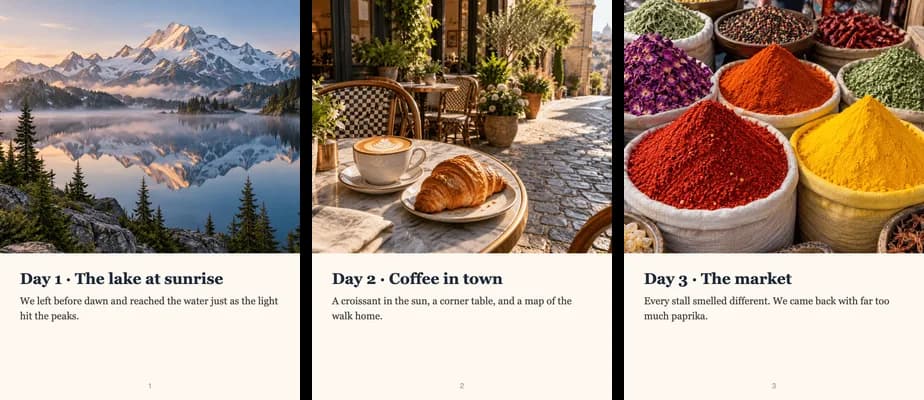
An EPUB is a zip of web pages, images and a few XML files that describe the book. This page writes an EPUB 3 file with one page per image, in the order you set: a package file with the title, author, language and a unique book ID; the first image marked as the cover, so it shows as the thumbnail in your library; a table of contents (Cover, Page 2, Page 3…) in both the EPUB 3 and the older EPUB 2 format, so older readers get one too. PNG, JPEG and GIF images are stored byte for byte, with no re-compression, and transparency is kept. Fixed layout marks the book as pre-paginated: each image fills one screen and is never split or reflowed, the way comics and picture books should read. Reflowable treats the images like pictures in an ordinary e-book, so the reader's margins and paper colour apply. E-reader 1600 px shrinks pages taller than a Kindle Paperwhite or Kobo screen.
Fixed or reflowable?
| You're making | Layout | Image size |
|---|---|---|
| A comic, manga or webtoon chapter | Fixed | Original, or E-reader for big scans |
| A children's picture book or photo story | Fixed | Original |
| Scanned pages of a printed book or notes | Fixed | E-reader 1600 px |
| Screenshots or slides to read on a tablet | Fixed | Original |
| Photos with an ordinary e-book feel | Reflowable | E-reader 1600 px |
Apple Books, Kobo, Google Play Books, Thorium and Calibre's viewer all support fixed-layout EPUB 3. Amazon's Send to Kindle accepts EPUB files and converts them on the way; if a fixed-layout book looks wrong on a Kindle, make it again with Reflowable.
This page vs typical online PNG to EPUB converters
| Feature | This page | Typical online converters |
|---|---|---|
| Where the book is made | In your browser — pages never leave your device | Images are uploaded to a server, then deleted later |
| Many PNGs into one book | Yes, in the order you choose | Often one file in, one book out |
| Reorder pages | Drag, ← → buttons or Sort A→Z | Rarely |
| Title, author, cover | Yes — first page is the cover | Sometimes, under advanced options |
| Fixed layout for comics | Yes (EPUB 3 pre-paginated) | Rare |
| Image quality | PNG/JPEG/GIF stored byte for byte | Often re-compressed |
| Sign-up, file-size cap, ads | None | Common on free plans |
Frequently asked questions
How do I convert PNG images to EPUB?
Choose your PNG pages on this page, put them in order, add a title and author, pick Fixed or Reflowable layout and press Create EPUB. Each image becomes one page and the first one is the cover. It's free, with no sign-up.
Are my images uploaded?
No. The EPUB is assembled by JavaScript in your browser, so the PNGs stay on your device. Once the page has loaded it works offline.
Can I make a comic or manga EPUB?
Yes. Choose Fixed layout: every image fills one screen and is never split or reflowed. Sort A→Z puts numbered pages like 001.png, 002.png in order.
Will my PNGs lose quality?
No. With Original, PNG, JPEG and GIF files are copied into the book byte for byte, with no re-compression and transparency intact. E-reader 1600 px only shrinks pages larger than 1600 pixels.
Which apps can open the EPUB?
Apple Books on iPhone, iPad and Mac, Kobo e-readers, Google Play Books, Thorium, Calibre and most other e-book apps. For a Kindle, send it with Amazon's Send to Kindle, which accepts EPUB.
Does it add a cover and table of contents?
Yes. The first image is marked as the cover, so it shows in your library, and the book has a table of contents with one entry per page (Cover, Page 2, Page 3…).
Is there a limit on pages or file size?
No limit is set. Very large books depend on your device's memory; for hundreds of big scans, choose E-reader 1600 px to keep the file small.
Can I use JPG or WebP pages too?
Yes. JPG and GIF are added unchanged; WebP, AVIF and BMP are converted — to PNG when they're transparent, otherwise to high-quality JPEG.
Updated · By the imagetojpg.app team